
Install Sanad on Shopify
Your Sanad line
<script defer data-cfasync="false" src="https://sanad.northrook.net/assistant/nr-assistant.js" data-endpoint="https://sanad.northrook.net/api/chat" data-key="ws_YOUR_SITE_KEY"></script>
This is an example. Your own line is in your Sanad dashboard: Settings → Installation, or open the link in our email.
Steps
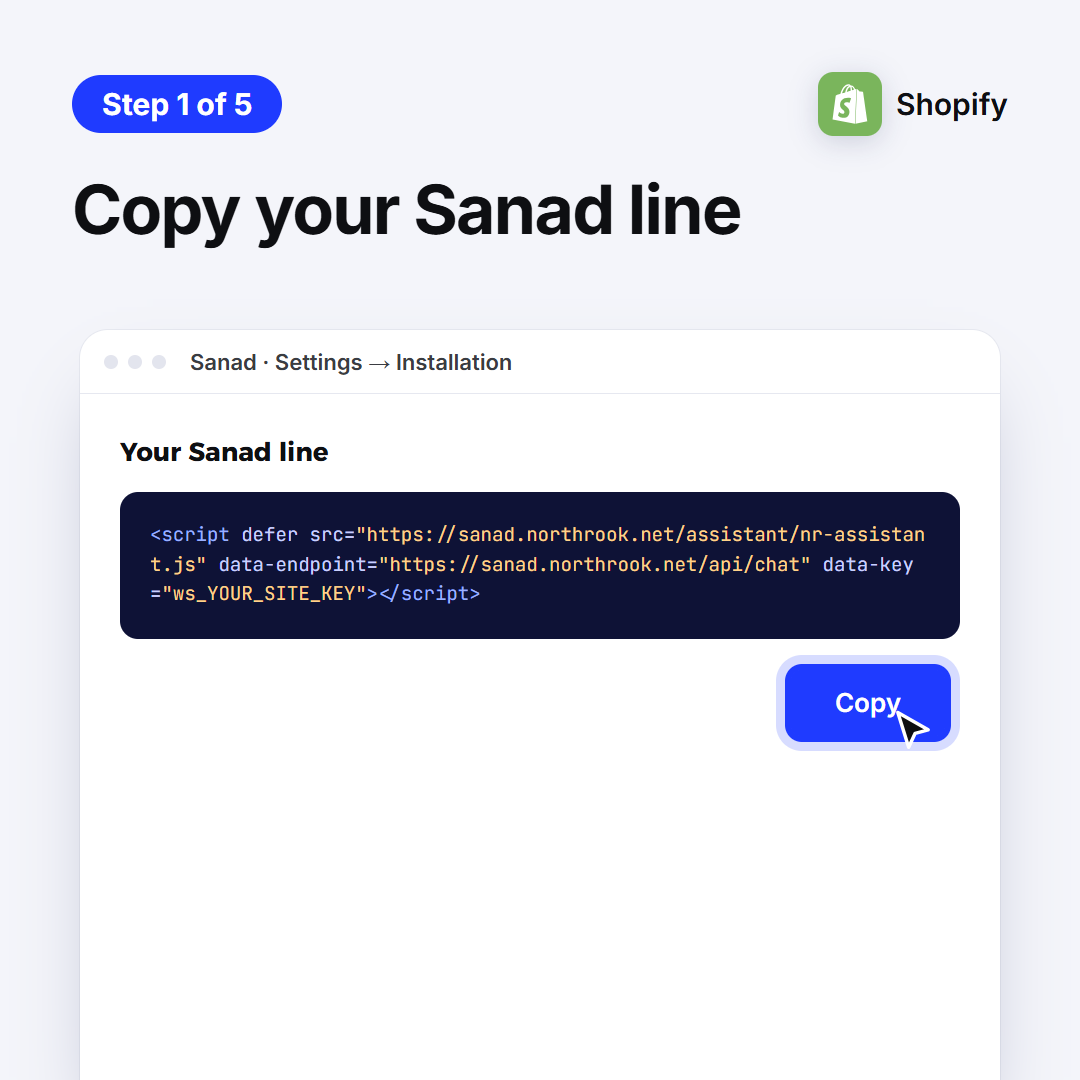
1. Copy your Sanad line
It's in this guide, and in your Sanad dashboard: Settings → Installation. Tap Copy.
2. Open Themes
In your Shopify admin side menu: Online Store, then Themes.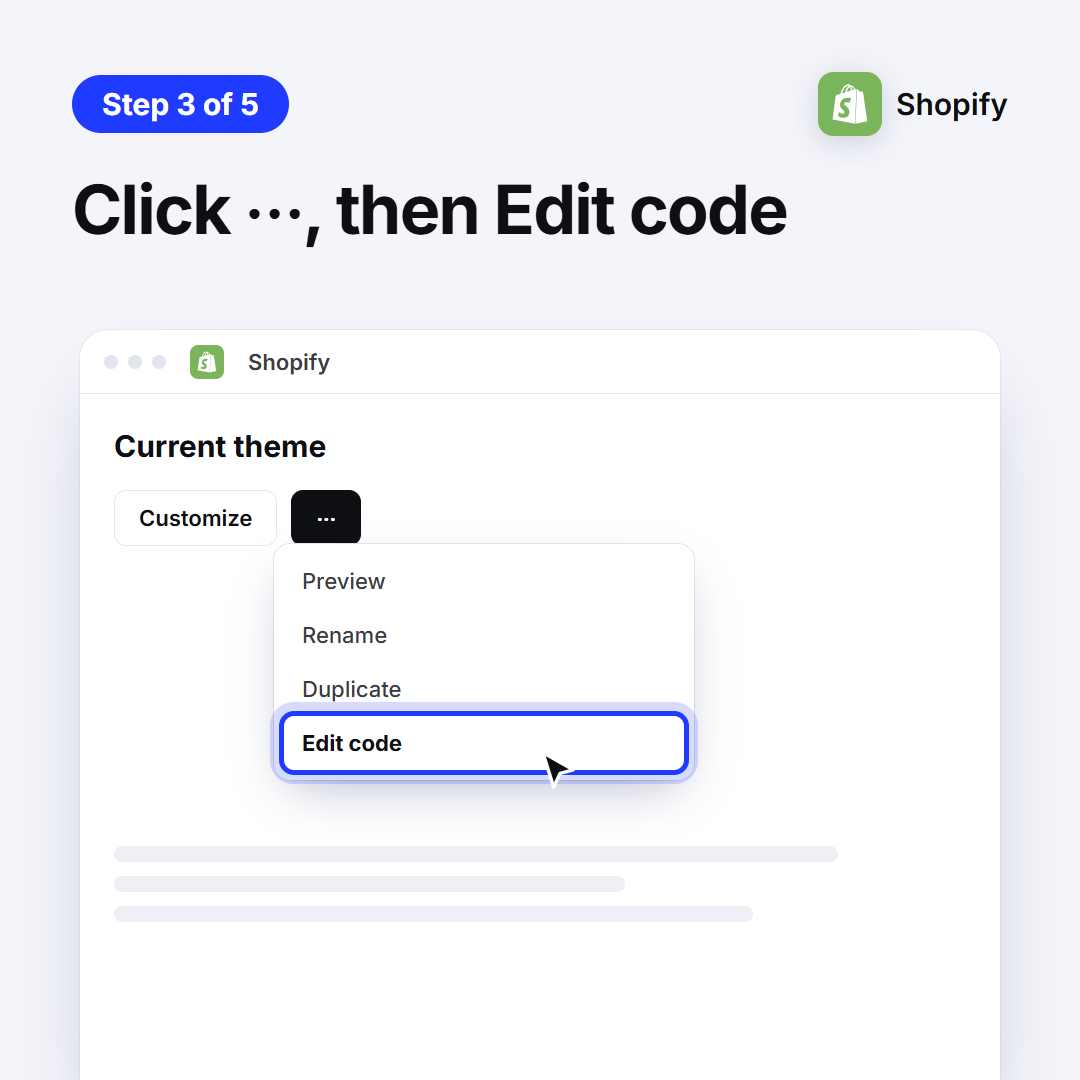
3. Click ⋯, then Edit code
On your current theme, click the three dots «⋯», then Edit code.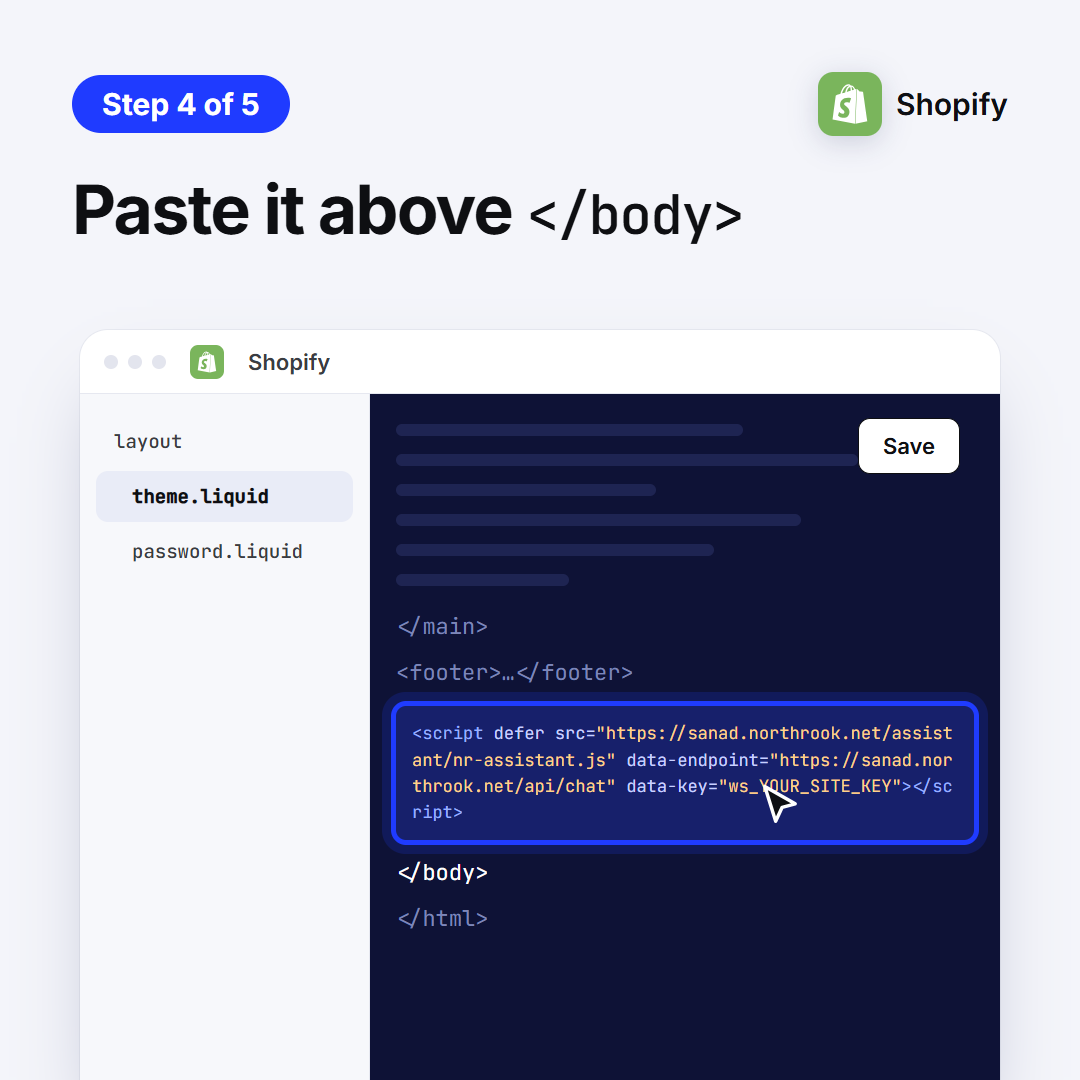
4. Paste it above </body>
Open theme.liquid, paste the line right above </body>, and click Save.
5. Done: Sanad is on your site
Open your site: the Sanad button sits in the corner. If it doesn't show within minutes, reply to our email and we'll help.
Didn't work? We'll help
Ask Sanad and it walks you through it step by step, your way. If that doesn't solve it, it passes you to technical support, or contact us directly.